facebook

Find the Best Online Photography Tutors & Teachers for Private Lessons

For over a decade, our private Photography tutors have been helping learners improve and fulfil their ambitions. With one-on-one lessons online, you’ll enjoy high-quality, personalised teaching that’s tailored to your goals, availability, and learning style.

Find Your Perfect Teacher

Browse our selection of Photography tutors & teachers and use the filters to find your ideal online class

Contact Teachers for Free

Share your goals and preferences with teachers and choose the Photography class that suits you best

Book Your First Lesson

Plan the schedule for your first class together. Once your teacher confirms the appointment, you're all set to start on the front foot!

252 online photography teachers

Julian

verified teacher icon
Colombia
£12

60-min

/h

trusted teacher iconTrusted teacher

Illustrator for illustrators of all levelsTranslate this text using Google Translate.

Illustrator for illustrators of all levelsTranslate this text using Google Translate.

Illustrator is a great application that meets today's advertising needs. The focus of this course is carefully crafted, moving away from traditional teaching approaches in this discipline. It is essential to establish a knowledge link between color modes, the products that can be created with this application, integration with other applications, and different formats, such as the use of Excel spreadsheets to create interactive, mass-produced brochures with detailed information connected with markers. Regarding integration, we will use two sister applications of Illustrator: Photoshop and InDesign for the creation of magazines. It will be a great experience, below is the thematic content ILLUSTRATOR THEMATIC CONTENT - Introduction  Introduction to vector drawing.  Differences between a vector image and a bitmap image.  Concept of vector drawing with ILLUSTRATOR (Characteristics of a vector)  ILLUSTRATOR Vs ADOBE PHOTOSHOP  Professional-level tool utilities.  New features compared to the previous version  The work environment  The document window and workspaces  Tool palettes, panels, and control panels  Configure the workspace  Document configuration and adjustment.  Document navigation.  Rulers and grids.  Using guides and smart guides  Color modes (CMYK color management).  Image formats.  Working with PostScript.  Keyboard customization - Creating files, the layers panel, and setting up the workspace  Configure the new file for different modes  Data to take into account about pixels in the new document  Pixel grid alignment  Generate custom document template  Prepare files for large outdoor advertising  Design compositions using layers and sublayers  Layer options.  Hierarchical layer structure.  Locking/unlocking elements.  Selections with layers.  Layer colors.  Nested layers.  Moving objects in layers - Storage formats, PDF files, export formats - Operations on Images  Rasterization concept and rasterization effects settings  Coupling transparencies  Selecting unaligned objects in ILLUSTRATOR  Graphic styles applied to vectors  Bitmap-based opacity masks  Pixelated effects on vectors  Place vs. Open photos (Linked vs. Embedded objects)  Preview pixels and contour  Preview of color separations and transparencies coupling  Quality output for bitmap elements  Printing bitmap documents  Print Presets  Segmentation of large documents  Boundary marks crop marks  Overprinting strokes and fills - Work tools  Navigation tools  Hand  Impression segmentation  Zoom  Copy and paste options; duplicating objects  Selection tools.  Configure selection and keyboard preferences  Normal, direct selection and group selection  Selection of objects in front, middle and back  Typical selection tools  Magic wand  Lasso selection  Selection by attributes  Group and ungroup  Isolation modes  Resize images and angles  Transformation Tools / Repeat Transformations  Reflection and distortion  Alignment and distribution of objects  Editing paths and Bézier curves.  Pen  Add anchor point  Delete anchor point  Anchor point  Curvature  Editing and modifying paths  Join and average paths  Simplify  Attributes of a stroke  Rows and columns  Compound paths  Clipping mask  Outline and move paths  Draft  Scissors  Blade  The brush and pencil tools, shaper, and adjustments  Shaper  Pencil  Soften  Stroke eraser  Brushes and Creation  Shading effects  Pattern brush  Ink strokes  Special brushes  Shading pen  Working with symbols  Symbol sprinkler  Move symbol  Gather and separate symbol  Change symbol size  Rotate symbol  Stain symbol  Translucent symbols  Apply styles to symbols  Color tools  Fill and stroke.  The color palette.  The samples palette.  Custom color libraries.  Paint bucket and eyedropper tool.  Color modification filters.  Reasons.  Degraded  Interactive paint can  Interactive painting selection  Drawing geometric figures  Drawing vector objects and properties  Main geometric objects in ILLUSTRATOR  Rectangle  Ellipse  Polygon  Star  Flash  Arch  Spiral  Rectangular grid  Polar grid  Interactive vertices  Shape Builder Tool  Sector and perspective tools  Sector  Select sector  Perspective grid  Perspective selection  Working with text  Draw text with color and outline; font style  Creating text boxes.  Create text outline  Custom text paths.  The text editor.  Flow text.  Mask text.  Use of text and brushes.  Flattened text.  Text  Area text  Text in path  Vertical text  Vertical area text  Vertical text on path  Retouch text  Modification Tools.  Rotate  Reflect  Climb  Distort  Reform  Width  Deform  Windlass  Pucker  Gain weight  Scallop  Crystallize  Wrinkle  Free transformation  Merger - Effects and Expand  Expand and Expand Appearance  From ILLUSTRATOR  3d  Path effects (Pathfinder)  Form conversion  Stylization  Applying filters  Clipping mask  From Photoshop - Mesh management, merges and gradients  Handling rounded meshes.  Advanced mesh management.  Mergers.  Working with mergers: expand, invert, and drop.  Gradients and gradient meshes.  Merger examiner.  Shadows of mergers.  Unified gradients. - Transparency and Appearance  Handling transparencies.  Opacity masks and coverage controls.  The Appearance palette.  Transparent colors.  Basic flashes.  Opacity masks. - Review of pre-print features  What should be done to design very large advertising works?  Prepare folder for sending to the contracted printer  Export as PDF.

Mohamed

Egypt
£12

60-min

/h

Learn Photoshop for photographers – from photo editing to professional outputTranslate this text using Google Translate.

Learn Photoshop for photographers – from photo editing to professional outputTranslate this text using Google Translate.

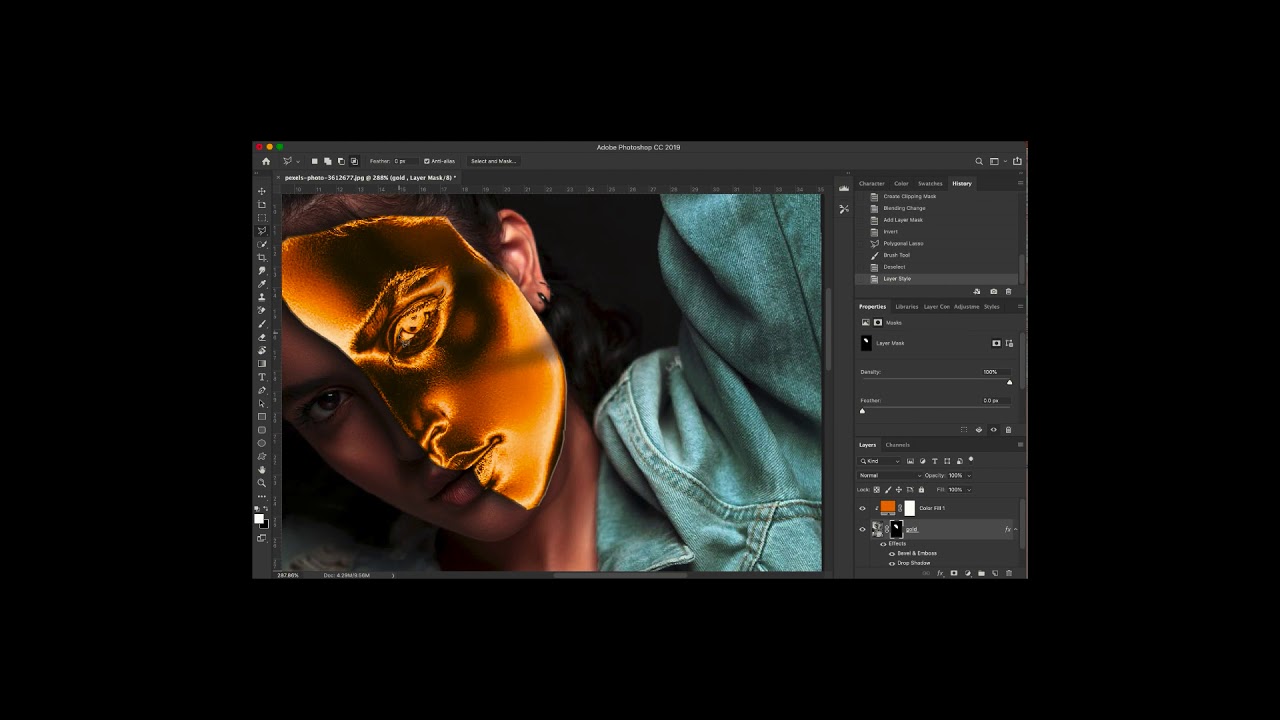
Learn Photoshop for photographers – from photo editing to professional output Are you a photographer and want to make your photos look more professional? In this lesson you will learn to use Adobe Photoshop the way a photographer really needs to, away from the complicated tools that you wouldn't use in your daily work. We will start with the basics if you are a beginner, then move on to professional techniques that photographers use to enhance images and prepare them for delivery or publication. What will you learn? Getting acquainted with the Photoshop interface and its most important tools. Organize photography files and work professionally. Color and lighting correction. Removing imperfections and cleaning up photos (Retouching). Crop images and adjust the composition. Using layers and masks. Merging and non-destructive editing. Preparing images for printing or posting on social media. Creating a fast workflow saves time while processing a large number of images. Who is this lesson for? Beginner photographers. Event and wedding photographers. Product photographers. Content creators. Anyone who wants to become a professional photo editor using Photoshop. Teaching method The lesson is largely based on practical application, where we will work on real images step by step, explaining why each tool is used and how to achieve the best result as quickly as possible. By the end of the course you will be able to edit your photos professionally, and create a structured work style that helps you deliver high-quality images to your clients.

Noa Veron

verified teacher icon
Germany
£53

60-min

/h

Concept, Narrative, Visual Language & Identity in PhotographyTranslate this text using Google Translate.

Concept, Narrative, Visual Language & Identity in PhotographyTranslate this text using Google Translate.

My name is Noah, and with me you’ll receive personal mentoring focused on developing artistic series, visual language, and coherent photographic projects. We will work with your personal vision, helping you find your own language and strengthen it. I hold a diploma in Photography as well as in Ceramics Design. I have worked for almost eight years in the movie industry, both as a props maker and as an on-set photographer. Alongside this and my own personal projects, I also worked on fashion collaborations, including 3D scanning and multimedia techniques. So if you feel like mixing things up a bit and are drawn to fine art approaches, you are in the right place :) I am happy to work with adults who already have their own practice, university students who want to strengthen their uniqueness or clarify their interests, as well as students applying to university. Let me know where and which department you are applying to, and we can build your portfolio together. I also work with children who love creative activities, as well as with kids who may struggle to relax, express themselves, or connect with their emotions through creative processes. Don’t hesitate to contact me with any questions — I’m looking forward to hearing from you! (If by any chance you are Hungarian, the class can be held in Hungarian as well!)

PreviousShowing results 26 - 50 of 25226 - 50 of 252Next

Our students evaluate their Photography teacher.

To ensure the quality of our Photography teachers, we ask our students to review them.

Only reviews of students are published and they are guaranteed by Apprentus. Rated 4.8 out of 5 based on 27 reviews.

“ I had my first Italian lesson with Davide on 24/9/21. My first impression was very good because he does a very good assessment before he starts of your level and of your goals and based on that he adopts his learning approach perfectly yo your needs. I give Davide a 5 rating after one lesson and would be very surprised if my view of him will change. On top of his ability as a teacher, he is a very nice and modest person. He knows how to drive a conversation and seems have a lot of patience! Looking forward to the next lesson! ”

“ Katerina is an excellent tutor and very easy to work with. I very much enjoyed my lessons with her. Lots of information and good advise. She came well prepared with relevant printouts etc. Looking forward to learning with Katerina again! Thank you 😊 ”

“ Julie is very knowledgeable and clear in her explanations (she even printed out some supporting material). I’ll definitely contact her again if I decide to explore photography further :) ”

To ensure the quality of our Photography teachers, we ask our students to review them.

Only reviews of students are published and they are guaranteed by Apprentus. Rated 4.8 out of 5 based on 27 reviews.

Map
Map